PixMiller PixMiller
Home / Tools / Photo to Pixel Art
AI image tool

Photo to Pixel Art

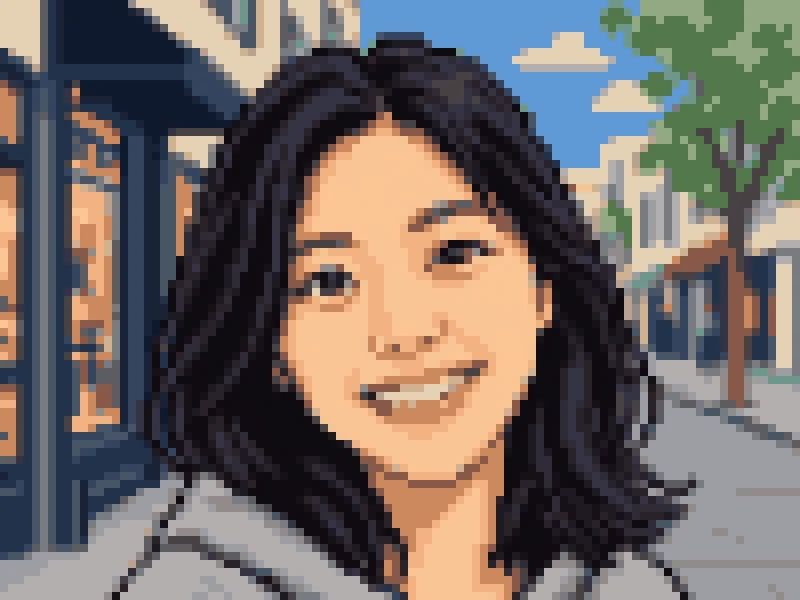
Upload a photo and AI redraws it as retro game pixel art, then snaps it to a true pixel grid with a limited palette. Great for icons and profile pictures — free to try, no app needed.

Upload a portrait to restyle it JPG / PNG / WebP / HEIC · up to 20 MB
All styles
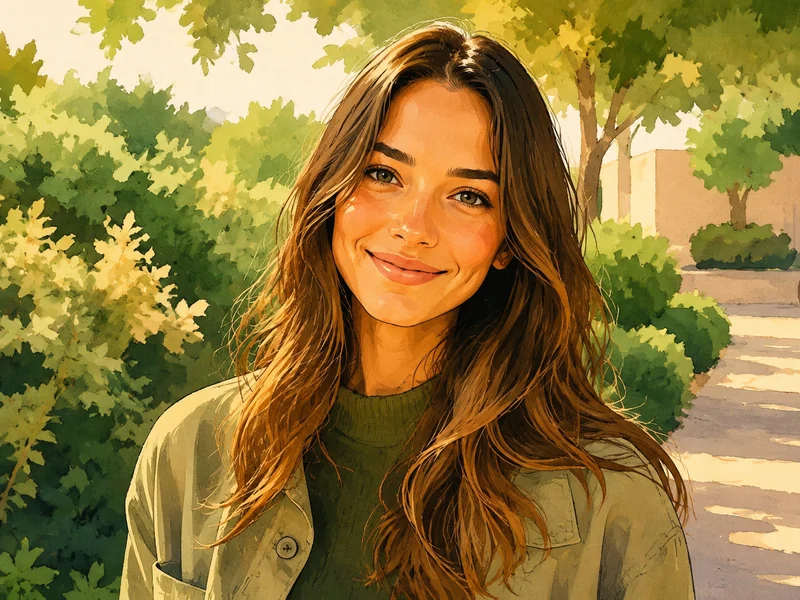
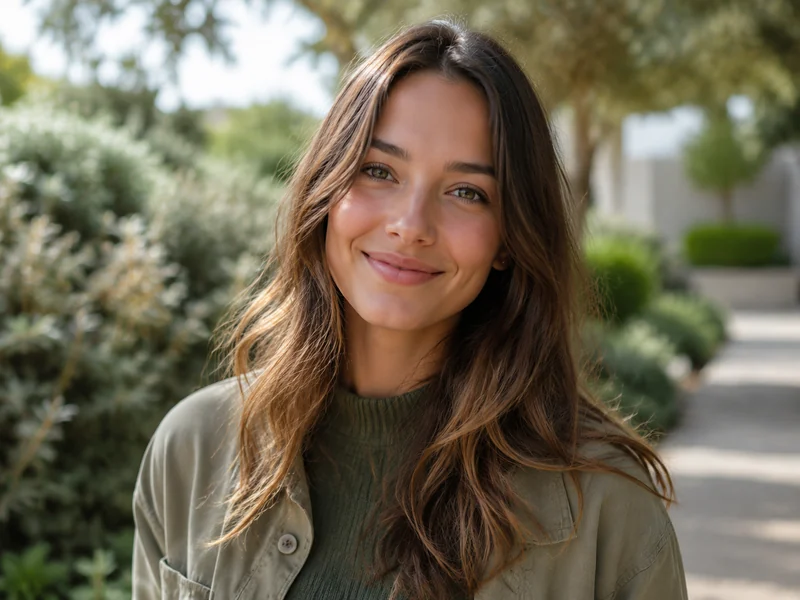
After: A front-facing portrait, redrawn as pixel art
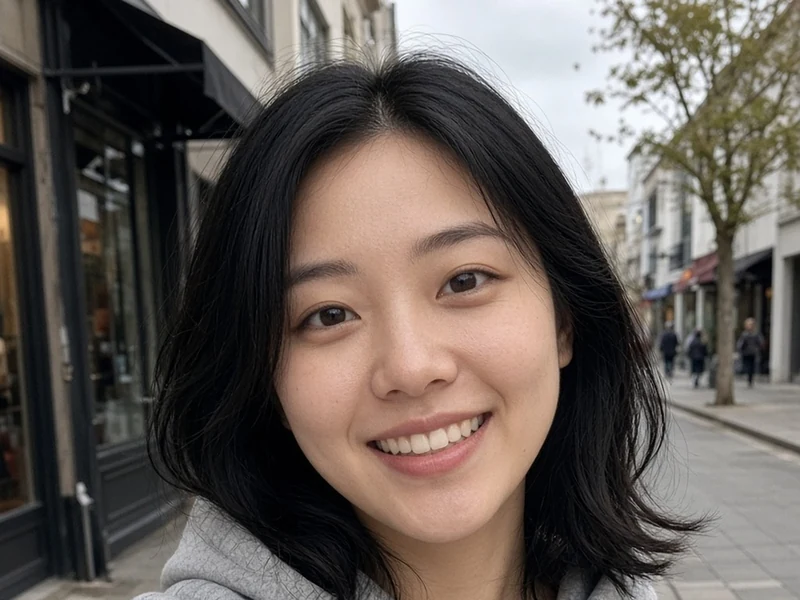
Original photo: A front-facing portrait, redrawn as pixel art
Before After

How it works

1 Upload your image Drag and drop or pick a file — JPG / PNG / WebP up to 20MB.
2 AI does the work Our AI processes your image automatically in just a few seconds.
3 Download the result Preview for free; download the finished, high-quality image.

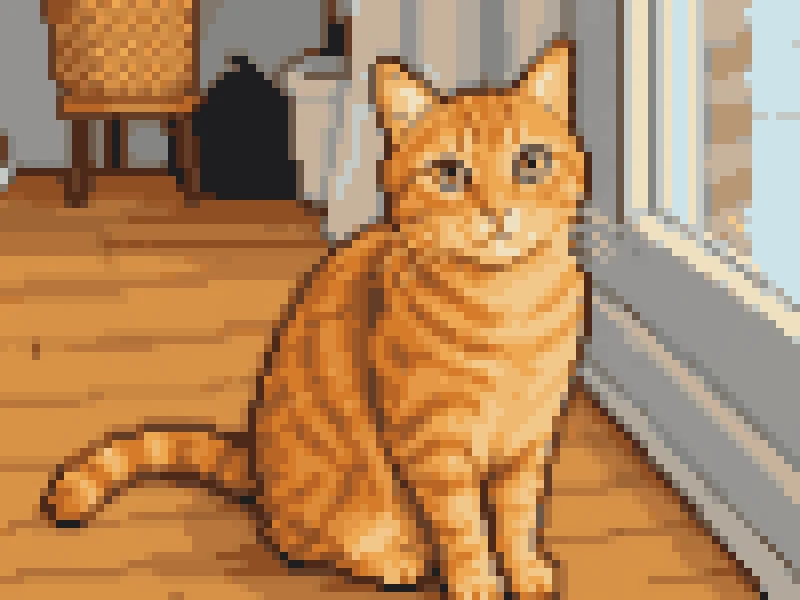
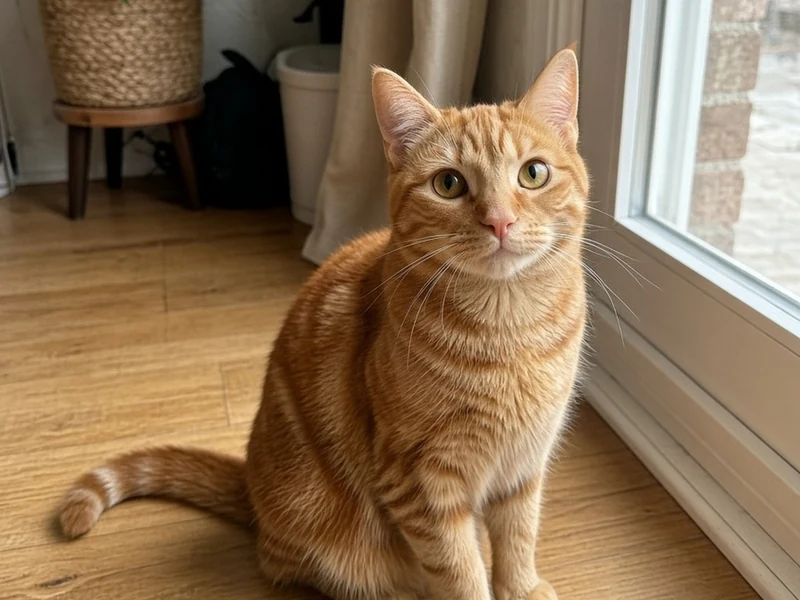
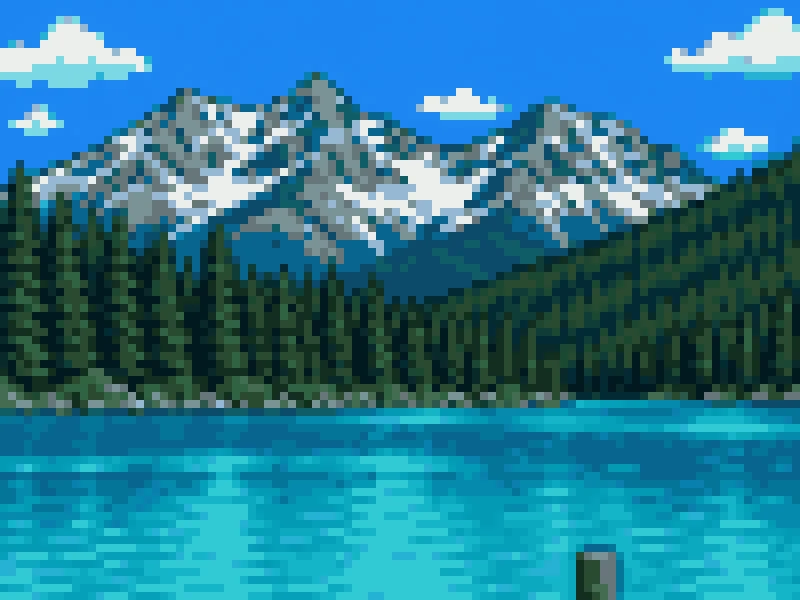
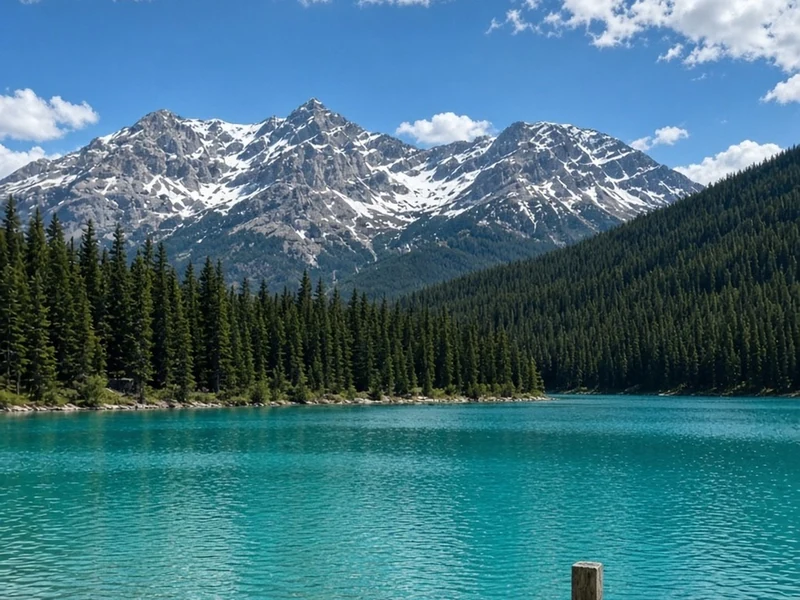
Pixel art from a family photo, a pet and a landscape

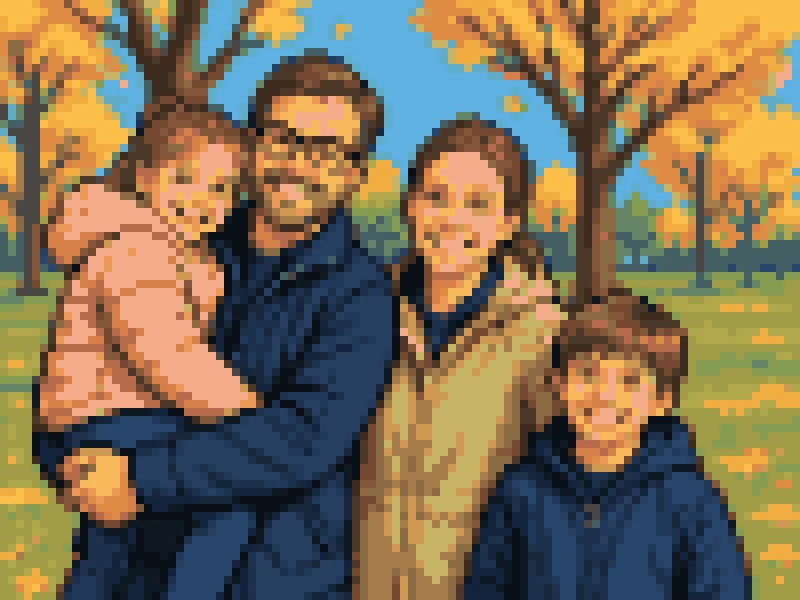
Each photo is snapped onto a real square grid with a limited palette — blocky edges, not a blur filter.

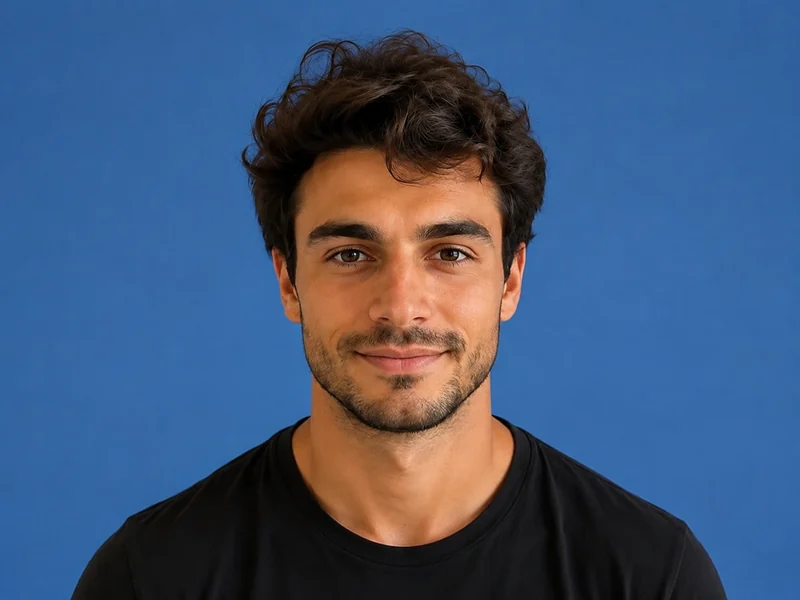
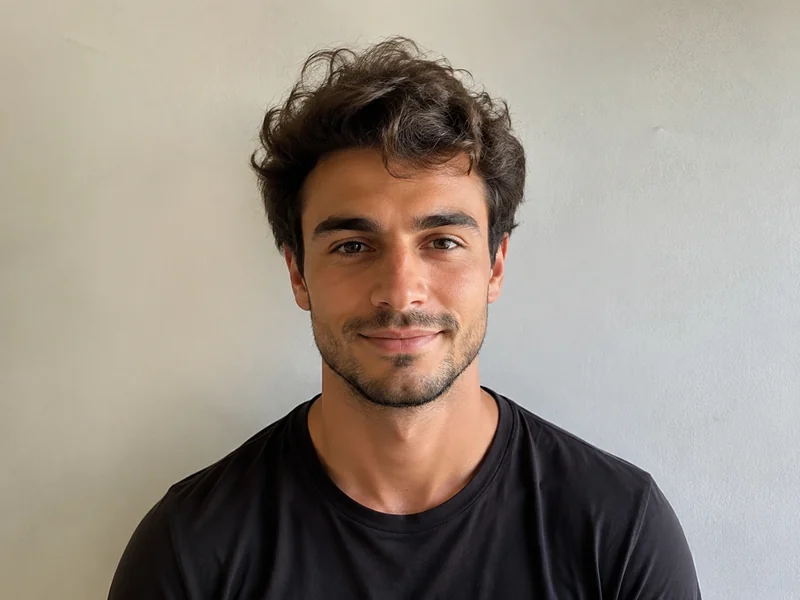
After: A family photo, redrawn as pixel art
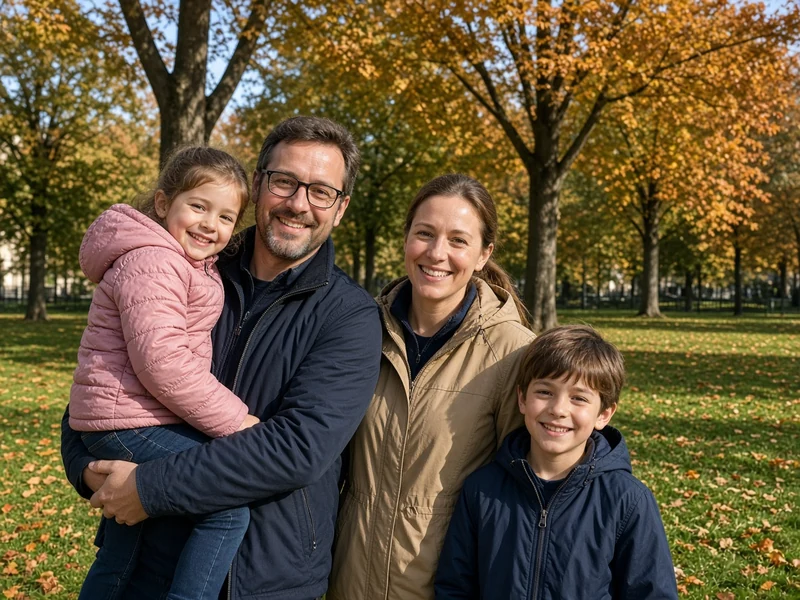
Original photo: A family photo, redrawn as pixel art
Before After
A family photo, redrawn as pixel art
After: A pet photo, redrawn as pixel art
Original photo: A pet photo, redrawn as pixel art
Before After
A pet photo, redrawn as pixel art
After: A landscape photo, snapped to a pixel grid
Original photo: A landscape photo, snapped to a pixel grid
Before After
A landscape photo, snapped to a pixel grid
Fast results Get publish-ready images in seconds, not hours.
Studio quality Clean edges and natural detail — no manual touch-ups needed.
Private & secure 256-bit SSL; images auto-delete within 3 days.

Frequently asked questions

Is it real pixel art or just a filter?

AI first redraws your photo as a simple sprite, then every pixel is snapped to a square grid with a limited palette — clean blocks, no blur.

Can I use it as an icon or profile picture?

Yes — the result is a square PNG; download the watermark-free HD version after signing in.

What photos work best?

Clear front-facing or half-body portraits give the best results. Avoid heavy occlusion and strong backlight.

Do I need to choose a model?

No — every style is already paired with the model that renders it best, so you just pick a style and generate. The credit cost shown reflects that style's model.

You may also need

After example image
Before example image
Before After
Try now
Portrait Stylizer Turn photos into anime, oil painting, 3D
After example image
Before example image
Before After
Try now
ID Photo Maker Standard sizes & background colors, ready to use
After example image
Before example image
Before After
Try now
Background Remover Hot One-click background removal — transparent PNG
Start using PixMiller today Get started free